


Introduction to the Hidden Custom Fields
Hidden Custom Fields enable administrators and sub-administrators to track, organize, and store internal-only data within user profiles or startup profiles. While standard custom fields allow founders, mentors, or applicants to view and modify their own information, Hidden Fields restrict visibility entirely to your administration team.
This feature provides a secure way to manage backend operations—such as tracking a startup's internal billing tier, recording private onboarding assessments, or logging administrative flags—without exposing these fields to the end user. This ensures your internal notes stay structured, searchable, and completely confidential.
Where to Find Hidden Custom Fields
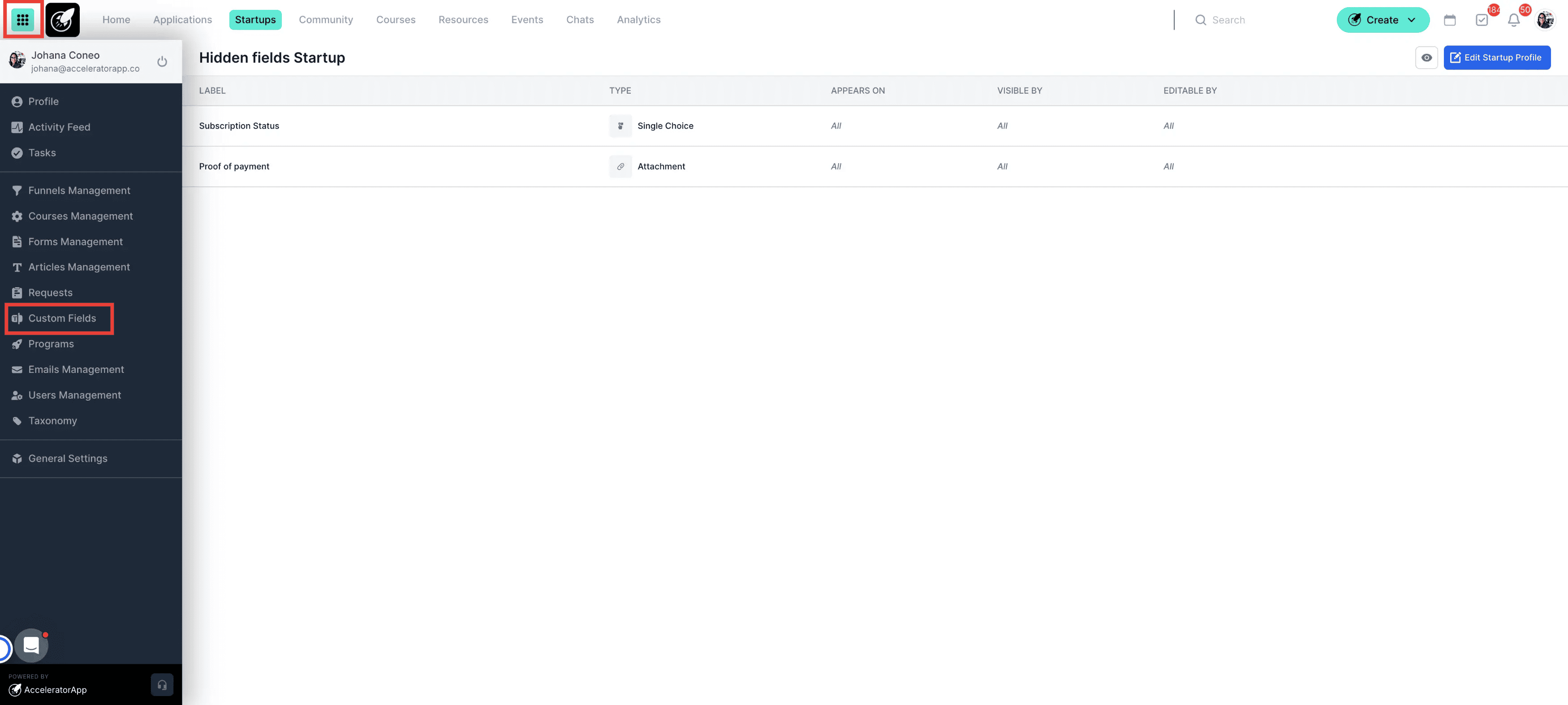
To configure these hidden properties, log into your admin account, open the sidebar menu, and locate Custom Fields > Hidden Fields Users ; Hidden Fields Startups. Once created, these fields are visible on the respective User Profile or Startup File pages for administrative users.
Step-by-Step
1. Navigate to Custom Fields
Open the sidebar menu in your administration panel and click on Custom Fields.
2. Choose the profile target type
Select either the Hidden Fields Users or Hidden Fields Startups sub-tab to determine where your new internal field will live.
3. Click Add Custom Field
Click on the Add Custom Field button located in the upper-right corner.
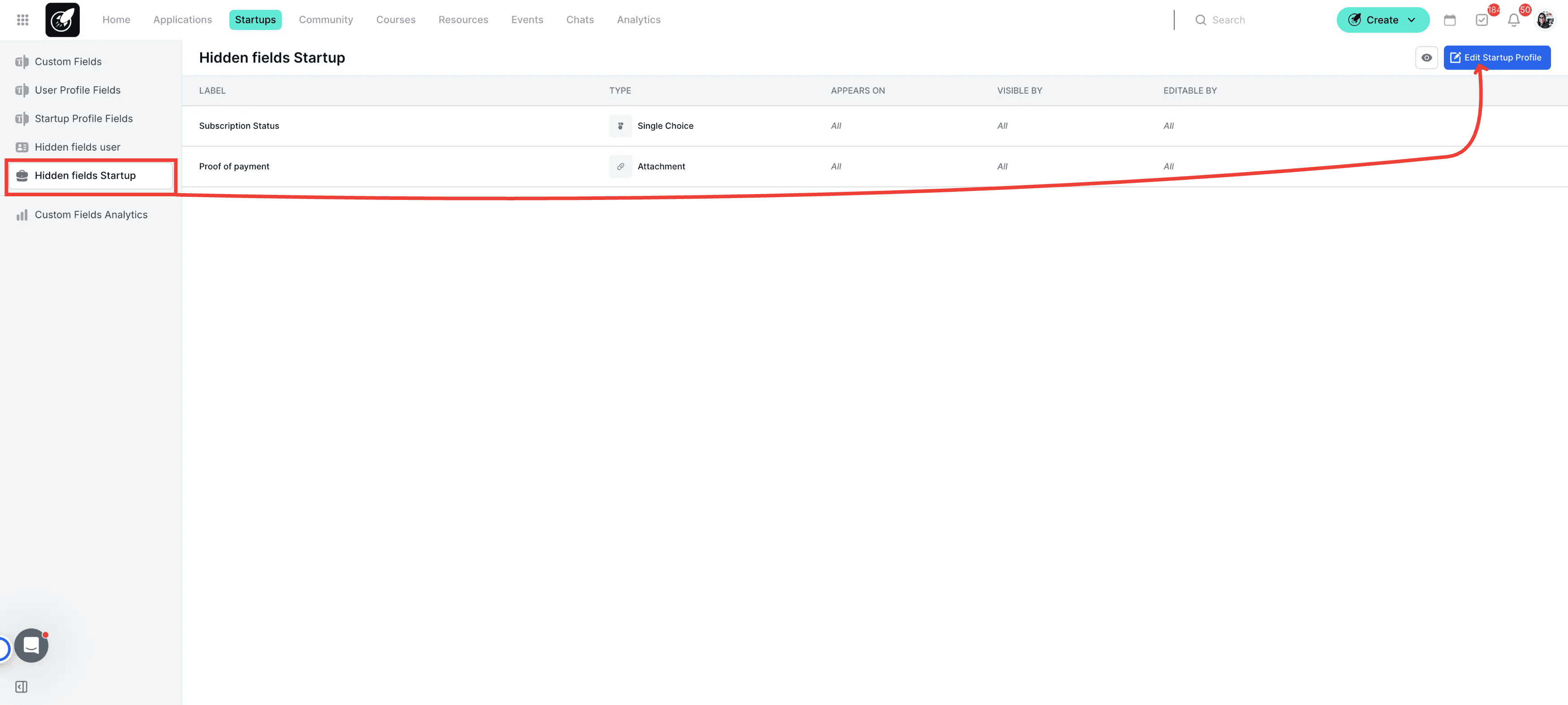
4. Define the field parameters
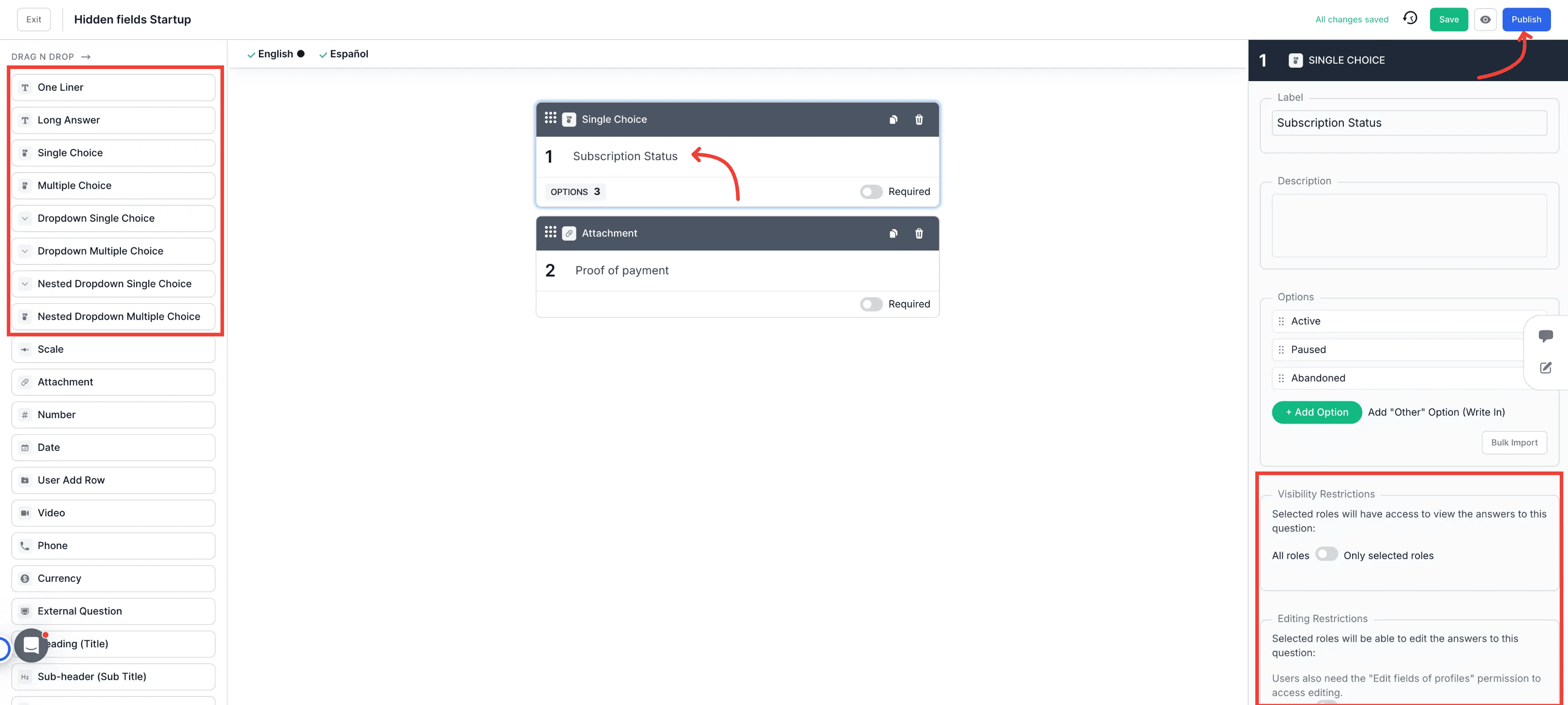
Enter a clear, descriptive name for your field, such as "Internal Billing Status".
5. Select the data type
Choose the appropriate data type format from the field type dropdown menu.
6. Enable the hidden visibility and editing restriction
Locate the field visibility options within the form and toggle on the option marked Hidden Field (Visible to Admins Only) and editable by admins only
7. Save the new custom field
Click the Save button to commit your changes and deploy the hidden field across your organization.
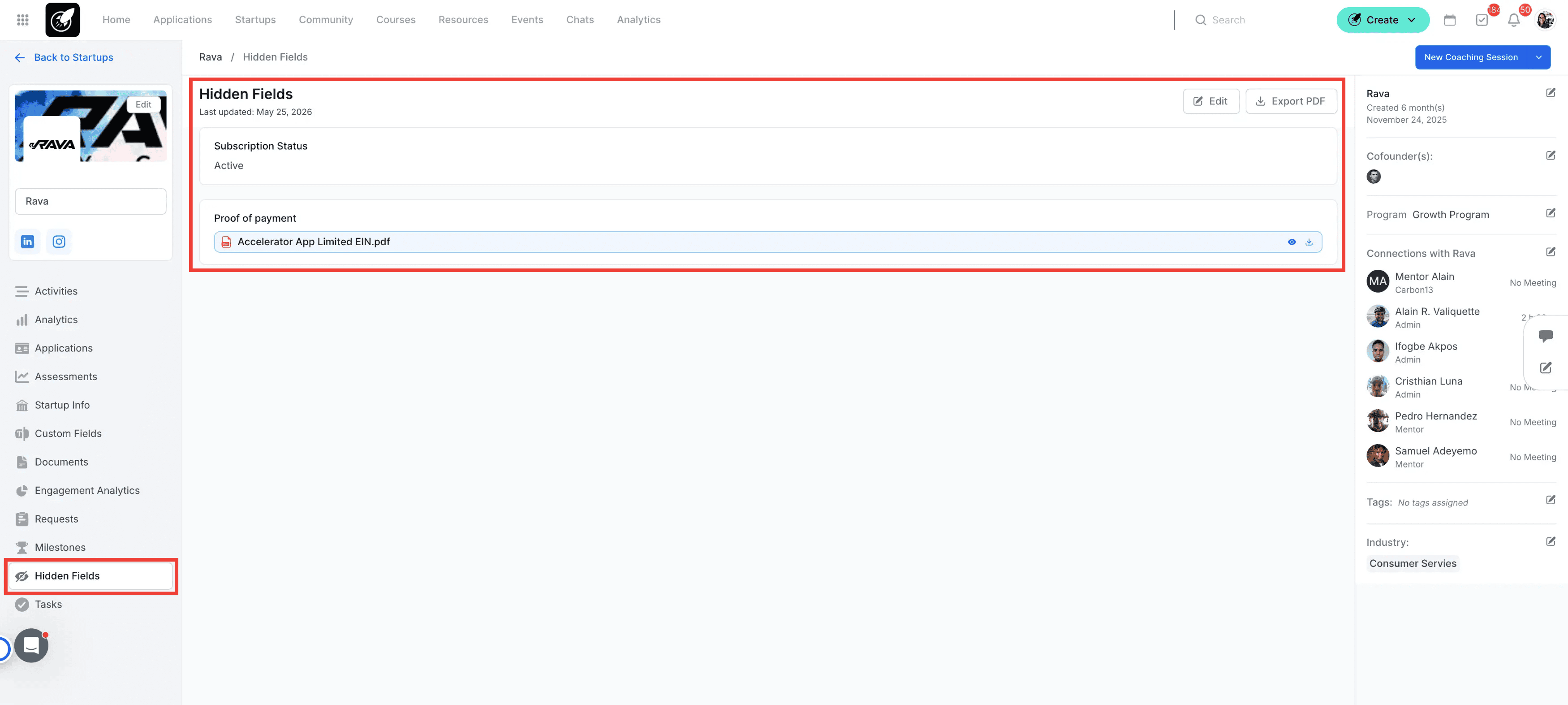
8. Verify the field on an individual profile
To view or update this data, navigate to a relevant Startup File or User Profile dashboard.
9. Manage the admin-only information
Scroll to the custom data area on the profile page to view, update, or edit the values inside your newly created hidden field.
Best Practices
Use explicit naming conventions for your internal hidden properties, such as prefixing them with "[Internal]" or "[Admin]", to help sub-administrators easily identify restricted fields at a glance.
Audit your custom fields directory before launching new cohort application cycles to remove or archive legacy tracking fields that are no longer aligned with your operational KPIs.
Avoid using plain text fields for critical system automation triggers; leverage structured choice dropdown values to ensure data entry consistency across your team.